Controlling Ardunio that is common embedded platforms using LINX on LabView
Ardunio is most common embedded platforms where using lots of project. It has reach this popularity thanks to its becoming very simple and cheap. It is not only has many built in features but also supports external devices interfacing. Because of these features, it requires writing different lines of code sometimes which could be cumbersome. Here comes in the LabView. It uses graphical language and doesn't require writing lines of code so using graphical diagrams to perform different tasks are easy with interfacing of LabView. Arduino combines both the simplicity of hardware board and the graphical language of labview to make it easier for you to change different task using only a graphical interface without having to write code. Arduino connected with labview also has a very nice feature which is basically the ability to read sensors data and to hand on these values to the graphical interface of labview.
Now we will do a simple work together. I will explain all the steps one by one.
Firstly, LabView and Ardunio IDE has must be installed on the computer. You can easily find these programs on the internet. After, we download and install NI-VISA library. This library provides support for input-output, USB, Serial Communication and Ethernet etc. İf it is not installed, connected port isn’t selected.
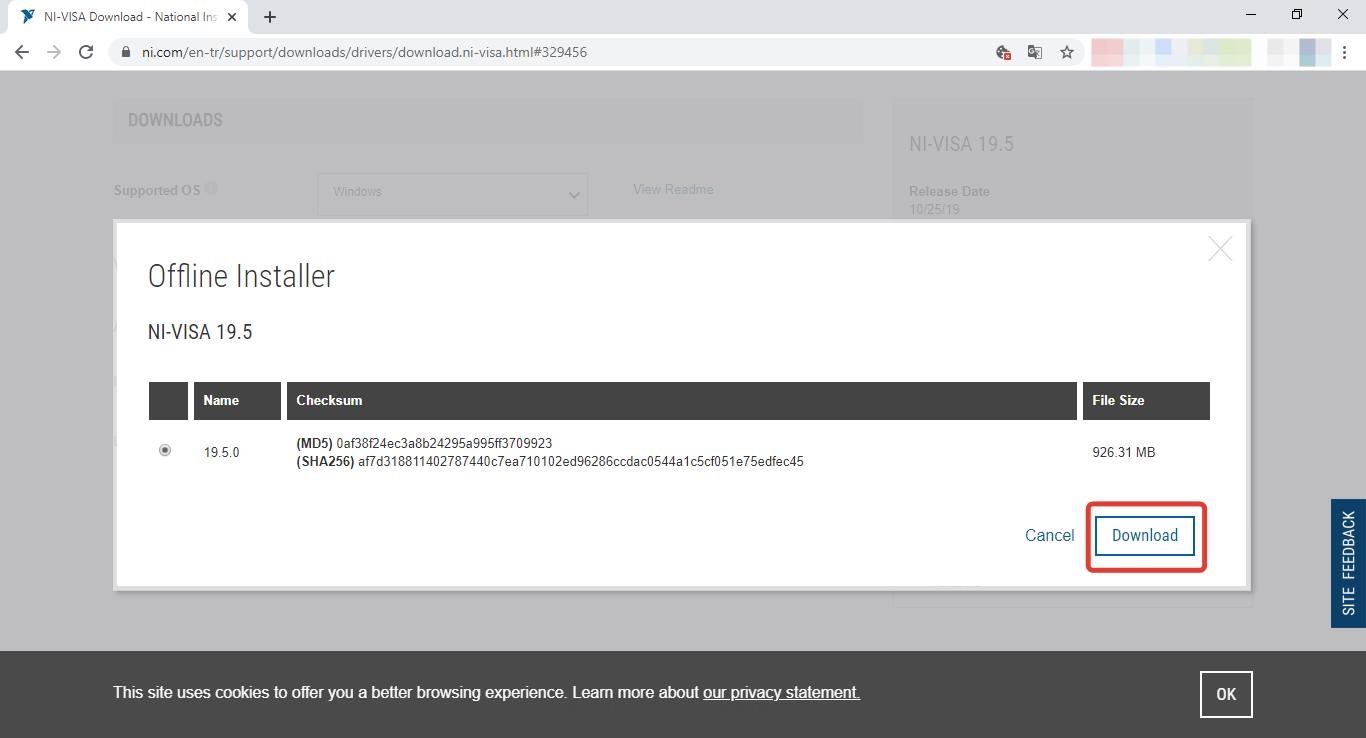
Natural instruments also provides online installation tool.
And then we need one last package. That is LINX. LINX provides board support simply. It includes graphical user interface, sensors Vıs, hardware agnostic APIs for accessing peripherals like digital I/O, analog I/O, PWM, I2C, SPI, and UART.
We already have isntalled serial communication support in VISA library but that has different purpose from LINX APIs. If you want to communicate two different device, you use a communication protocols like SPI. Also, you need SPI support for device that you want to communicate. VISA support package for LabView that is isntallad on the computer. LINX support package for Ardunio or etc.
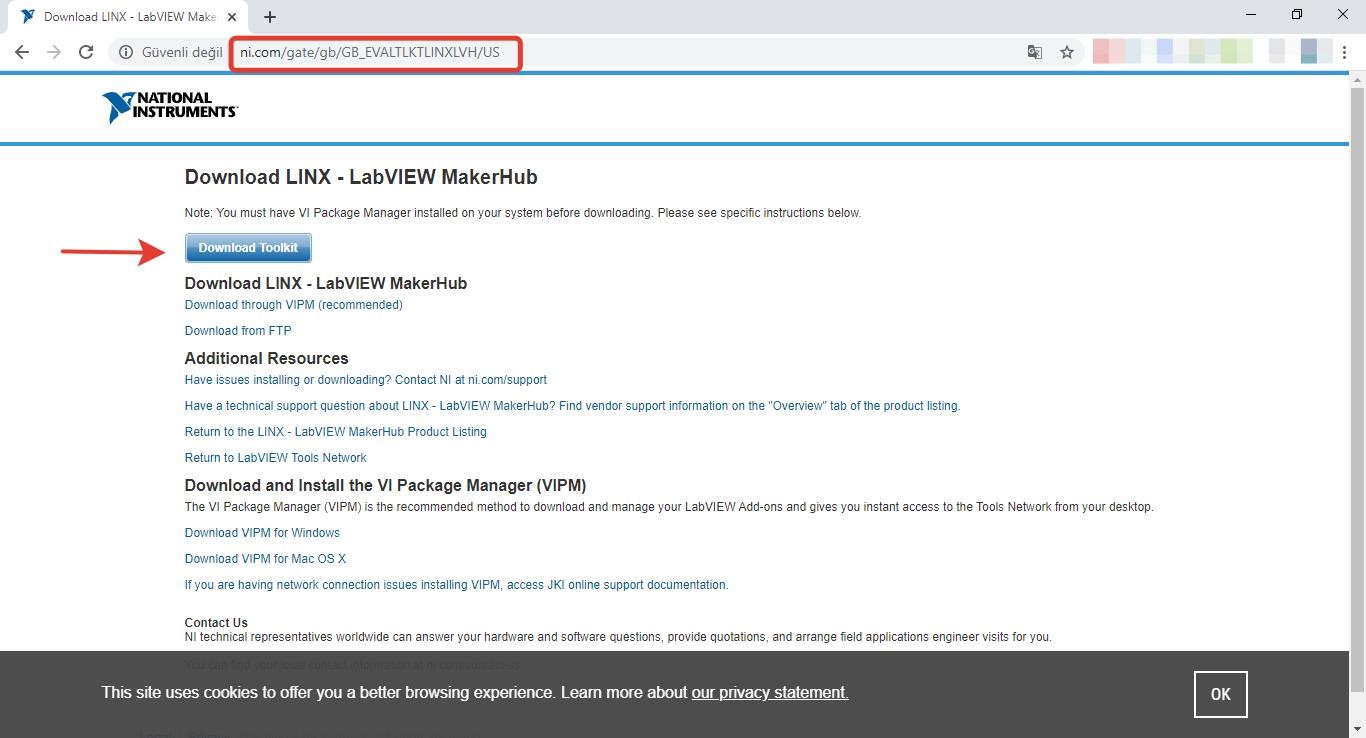
You can download from NI’s web site. Also you need VI package manager to download LINX. VI package manager comes with LabView. If you haven’t it, You can download same website.
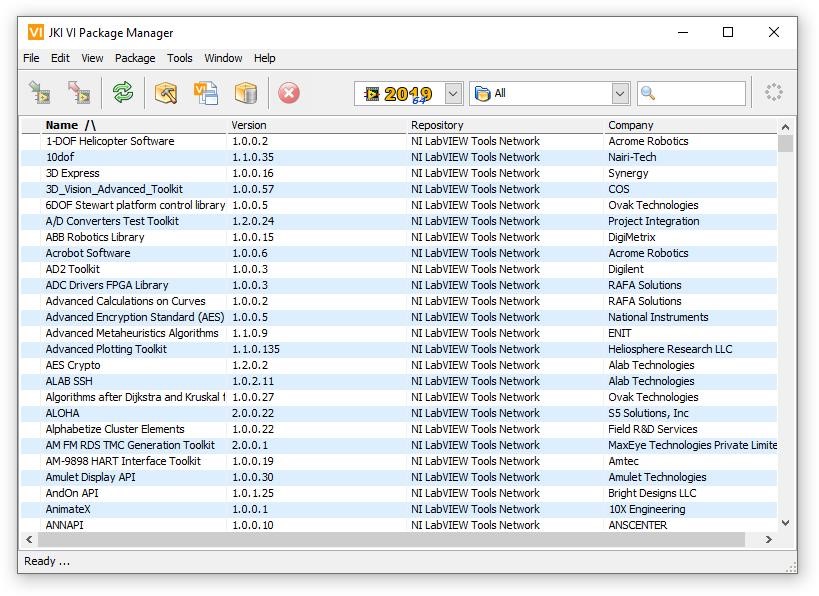
VI package manager includes lots of package, API, toolkit and more.
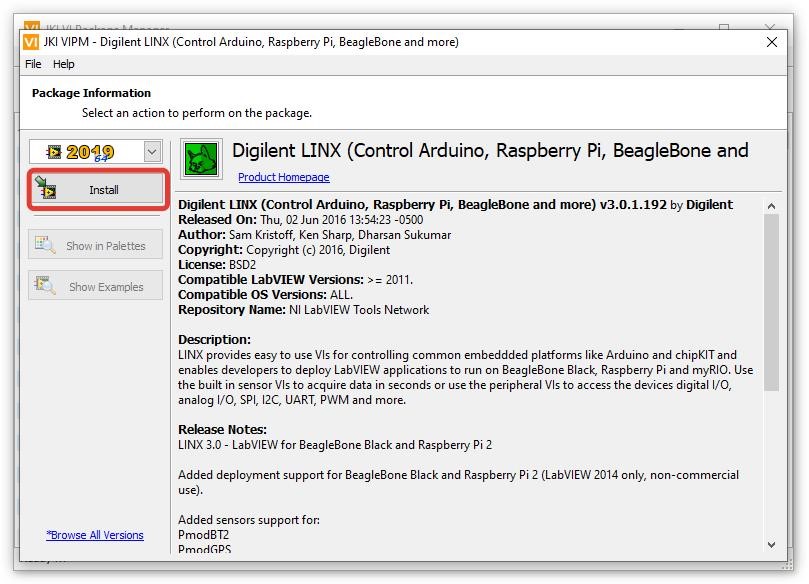
If downloading is not starting, probably, you have a internet connection problem or a problem what VIPM cannot to communicate to LabView. VIPM connection problem solutions is found easily on the forms on the other hand, internet problem generraly occurs when using company or group internet network.
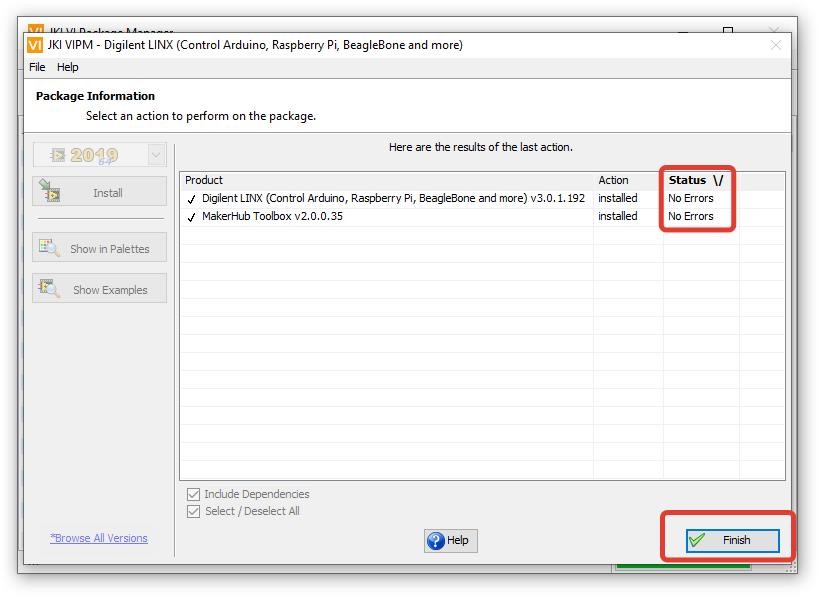
We are ready for the first aplication after the program is successfully installed.
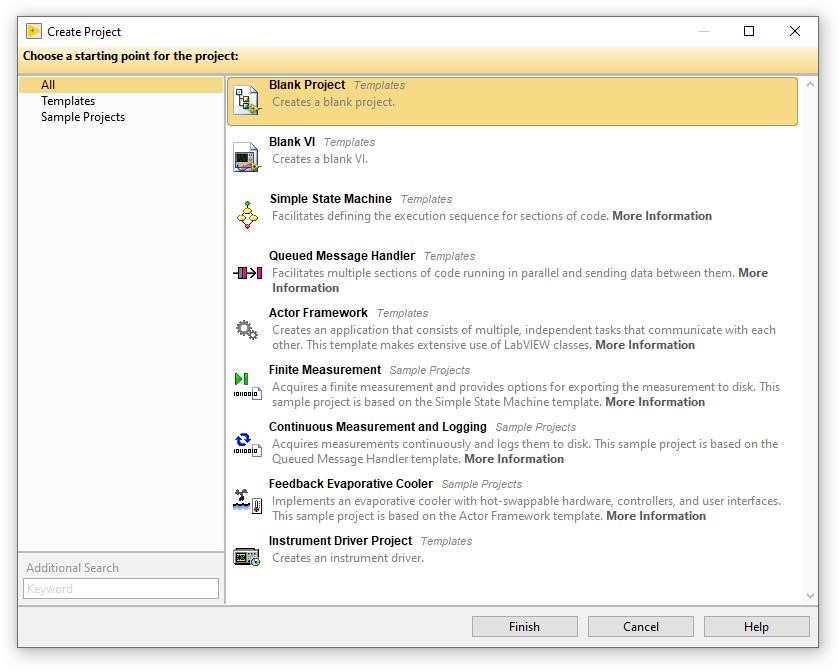
After you open the LabView and create new blank project and add new vi to the project, we are ready to start.
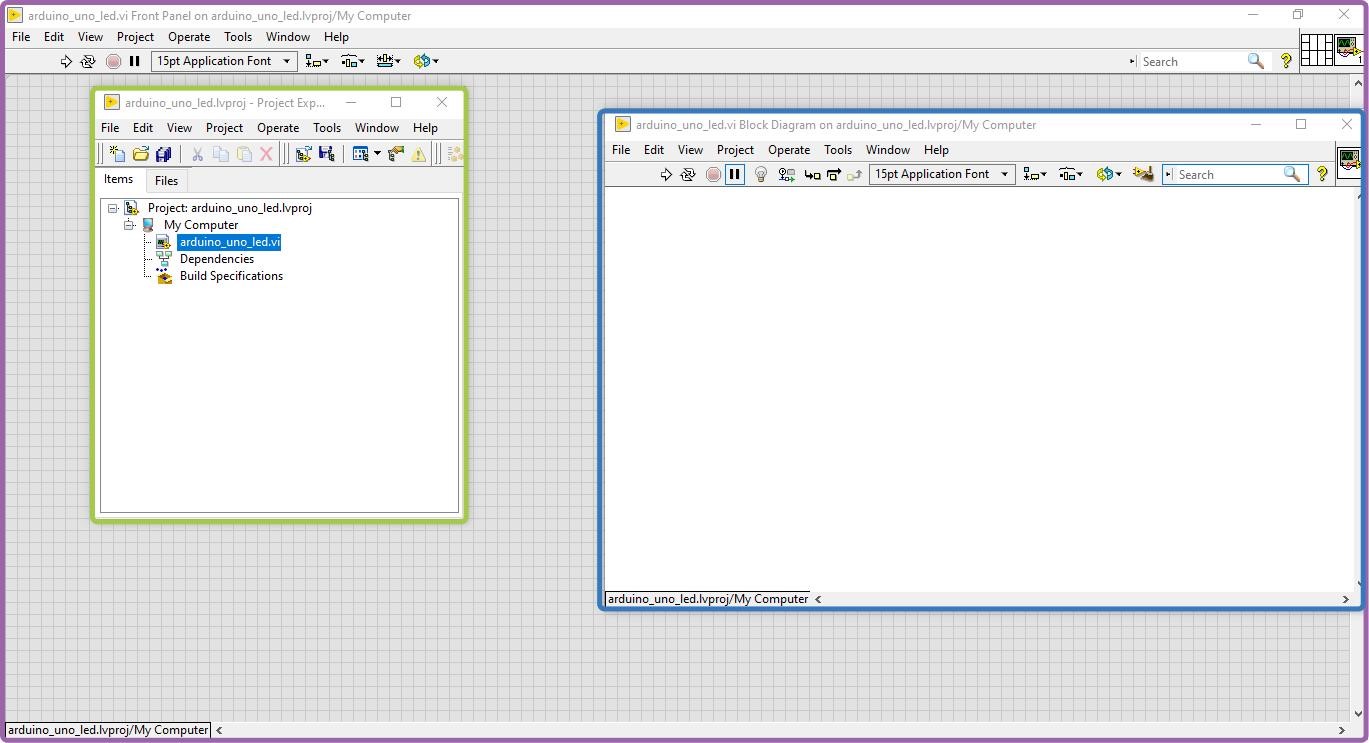
If you complated these steps succesfully You have three window. Sometimes, front panel that is shown in purple rectangle and block diagram panel that is shown in blue rectangle cannot open. If this occurs, You can open the project window that is shown in green rectangle and click the vi file so front panel is openning. You can click the show the block diagram below the window tab to reach it.
Shortly, graphical language is drawn in block diagram. You can edit the visual interface from the front panel therefore, front panel is used to control and simulate to program.
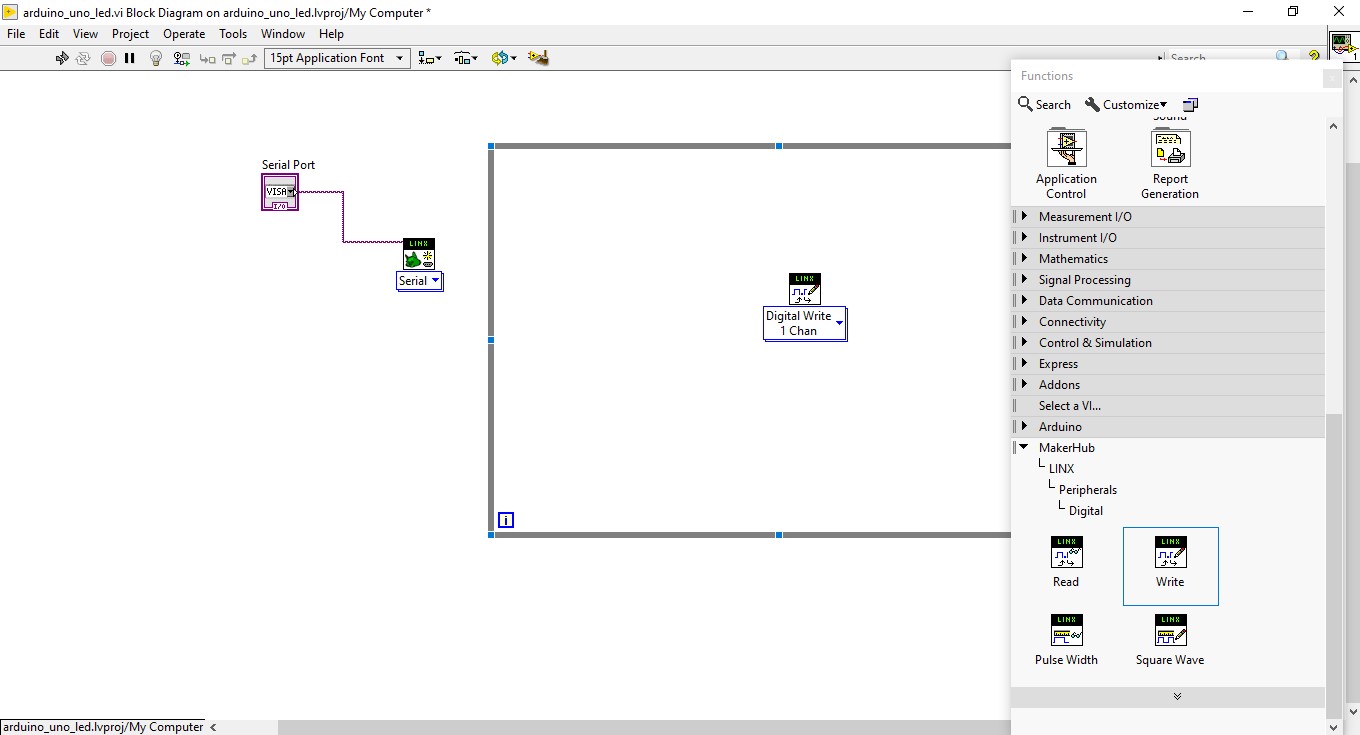
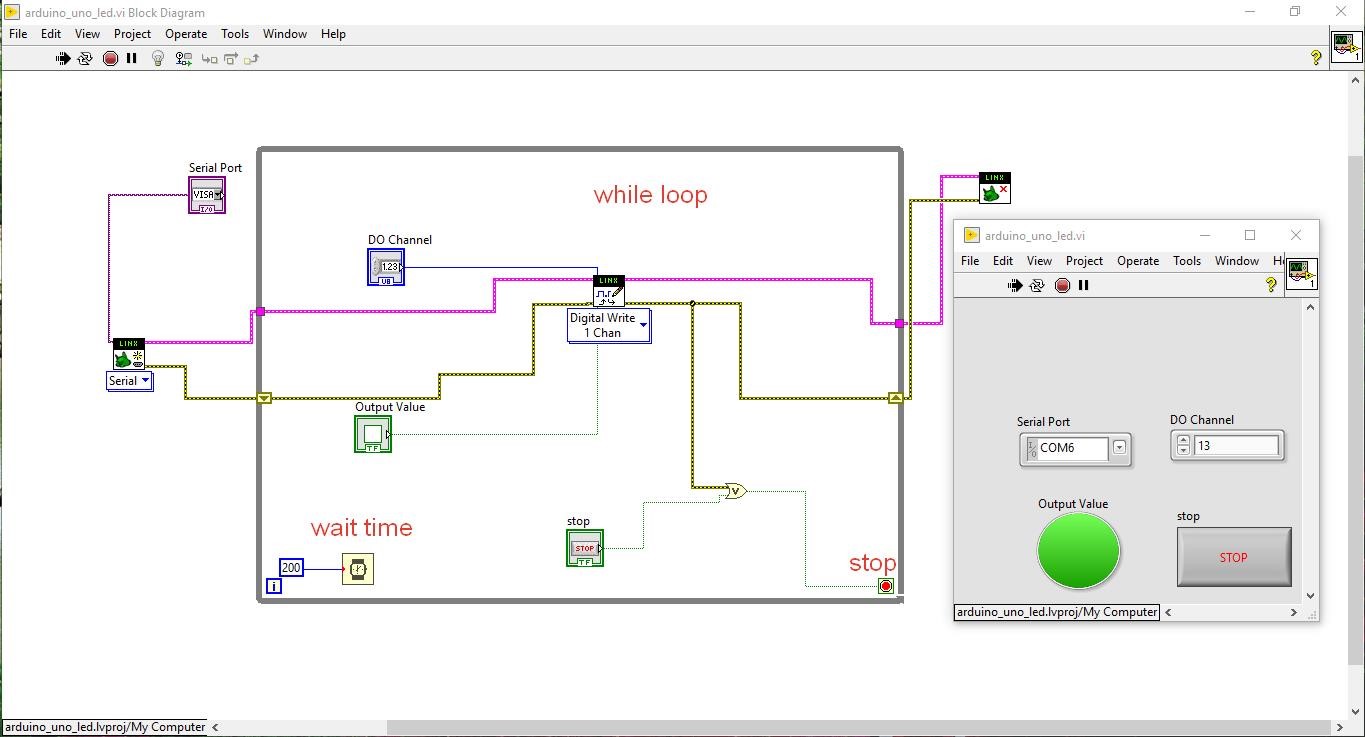
We start drawing the block diagram like in the image. When you add item in the block diagram, Labview, atomaticly, adds interfacing image that belongs to adding item besides, opposite situation is available.
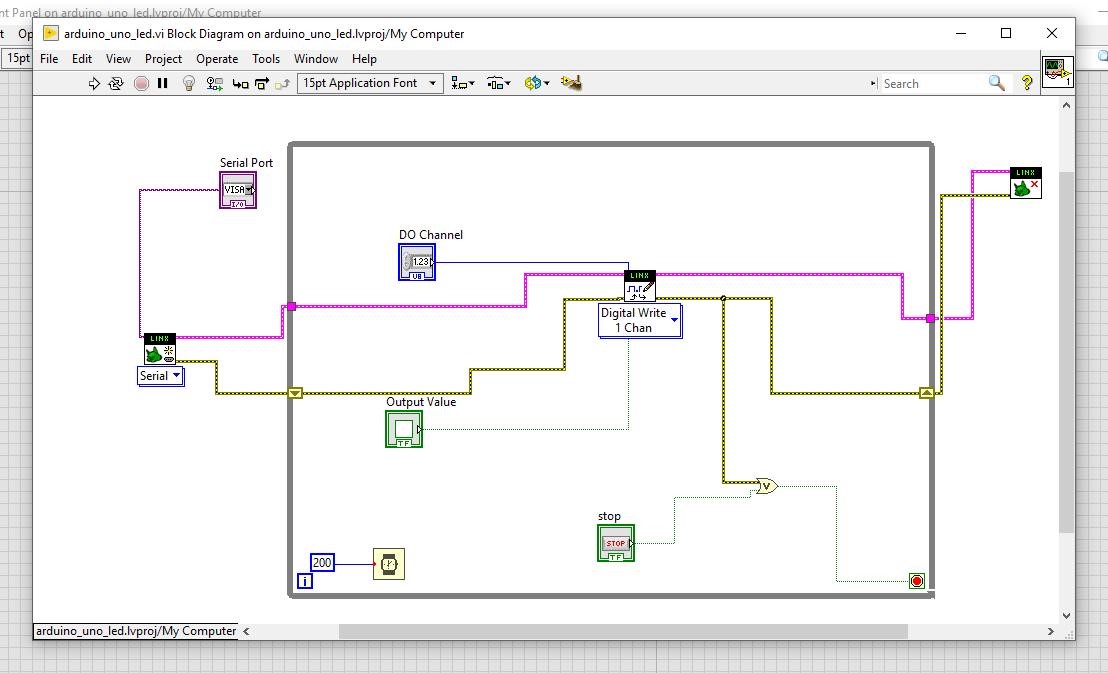
This is our program block diagram is complicated. In this program, Ardunio communucate the LabView using serial communication. We can select the digital output pin thanks to DO Channel also, Output Value supports to us changing to pin level.
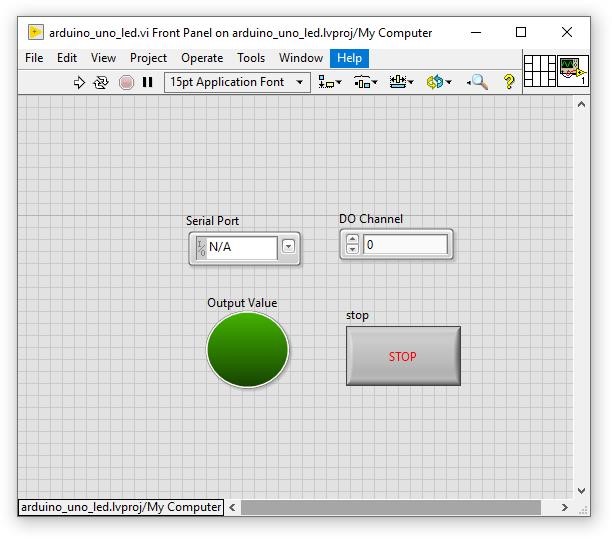
This is front panel. You can edit you want. Now we have fnished drawing the program. After this steps, we start to loading steps to the Ardunio. I recommend that you can write simple program using ardunio ide and download to the board so you test the ardunio for work succesfully. Ardunio ide is uses by LabView when the program is downloading.
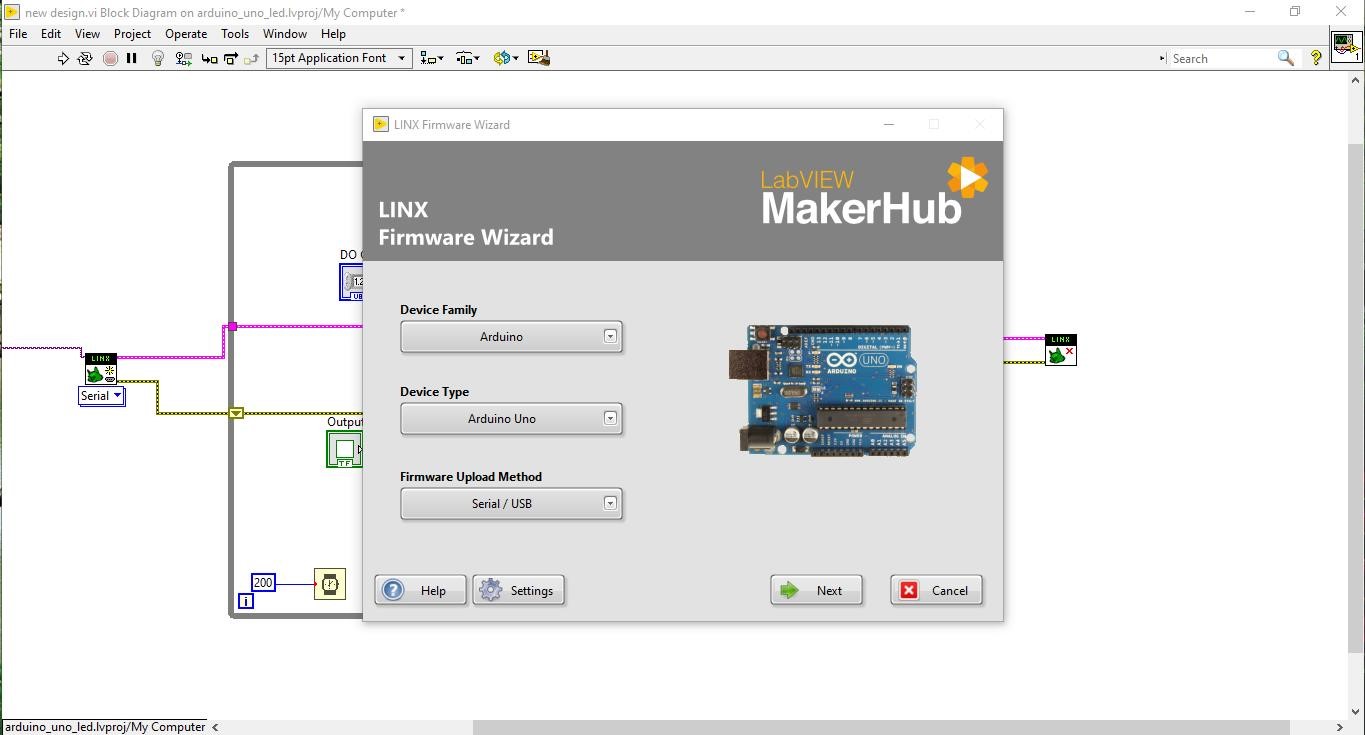
You must be connect the ardunio board to your computer and your operating system must be asiggned to Com Port to your ardunio. You find out which prot use in device manager. Then, You must open the linx firmware wizard window by following the path to the tools-> makerhub-> linx-> linx firmware wizard and select the board.
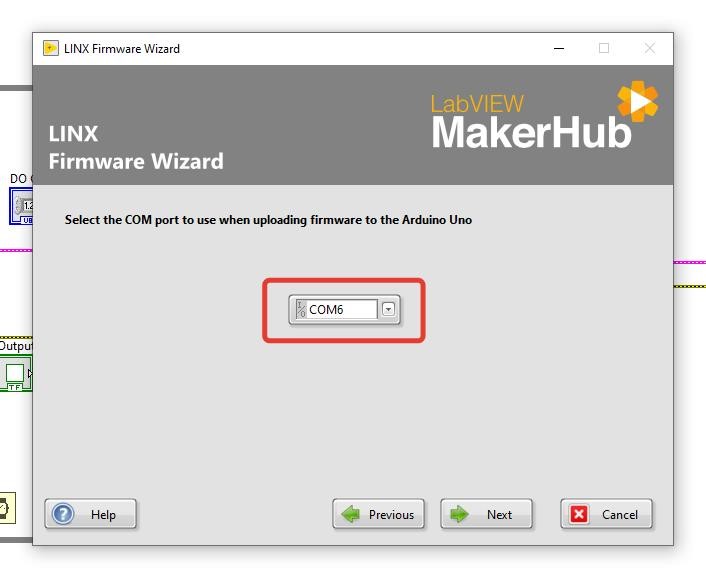
You select com port on the new page that opens and download the program to the ardunio.
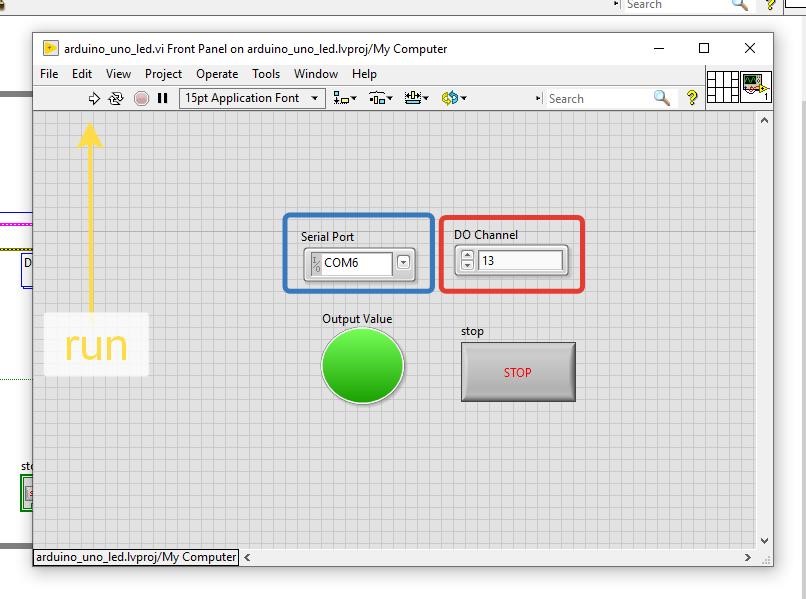
After downlading the program to the ardunio, you open the front panel and select the DO Channel and Serial Port. Finally, run the program.
Hasan YİĞİT